
Staff access, receipts & expense reports
Church expenses, with everyone doing their part.
In Jade Funds, give staff access to upload receipts, explain purchases, and submit reports for spending through your church’s accounts. Finance sees saved details right away and approves individual purchases.
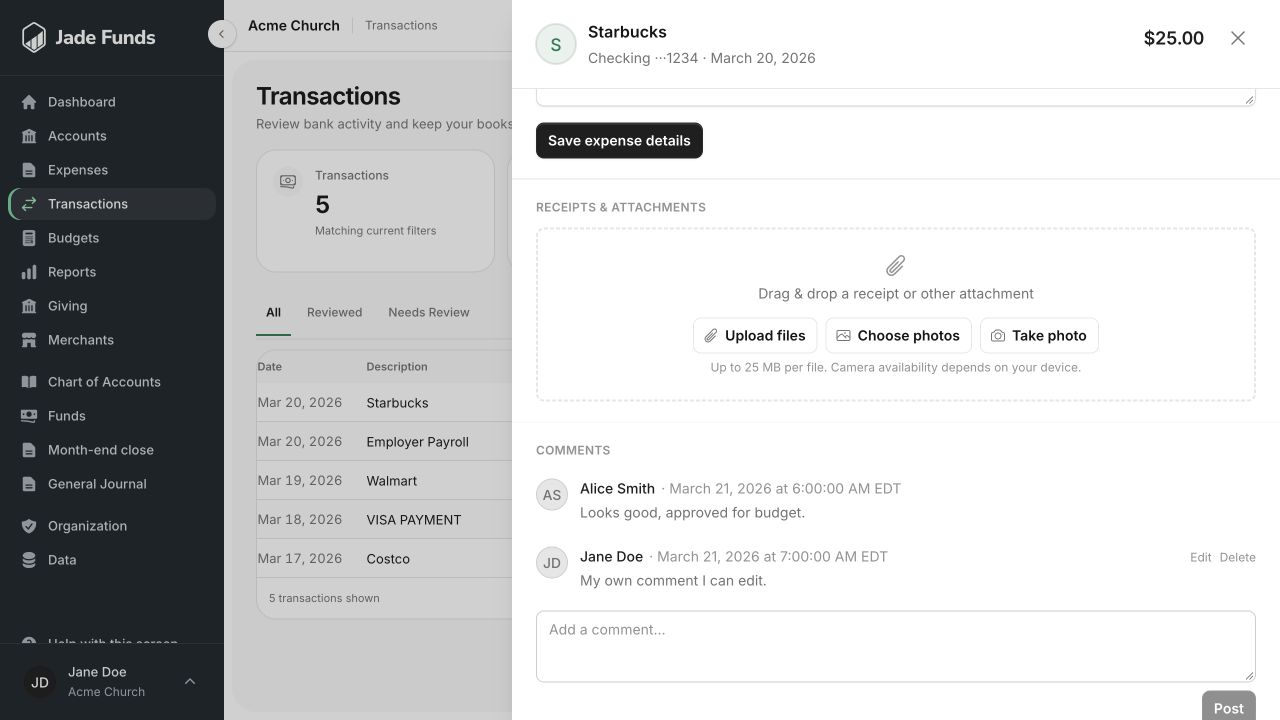
This workflow covers spending through organization-owned accounts. Personal-expense reimbursement and reimbursement payments aren’t included.
Who needs to do what?
Match access to the work each person does.
A volunteer uploading a retreat receipt, a ministry leader checking a budget, and a treasurer reviewing the books have different responsibilities. Configure roles and record access around those jobs.
Example configurations, not fixed access tiers. Your church chooses the roles, permissions, and records each person can access.
Staff & volunteers
For the person buying supplies, planning an event, or turning in a church purchase.
- Upload receipts and supporting documents to accessible purchases.
- Explain the purpose, event, or project behind an expense.
- Submit requested expense reports and respond when finance asks for changes.
- View assigned budgets when that access is granted.
In this example: staff document their purchases; they do not approve expenses or manage the church’s settings.
Ministry leaders
For a youth pastor, children’s director, or staff member responsible for a ministry budget.
- Upload receipts, explain purchases, and submit requested expense reports.
- View assigned budgets and compare ministry spending with the plan.
- Contribute to budget drafts when given the appropriate assignment and permissions.
- Work with the accounts, funds, and related transactions they have access to.
In this example: leading a ministry does not automatically grant expense approval or access to every church account.
Finance team
For the treasurer or bookkeeper gathering details and preparing the church’s financial records.
- Review saved details immediately, and approve individual eligible purchases or return them with notes.
- Assign purchases or organization accounts to staff members.
- Request expense reports and set recurring monthly requests and reminders.
- Work with transactions, funds, budgets, and reports as their permissions allow.
In this example: review, approval, and report management are granted separately. Nobody can approve their own expense submission.
Administrator
For the person responsible for the church’s Jade Funds organization and team setup.
- Invite people and assign their roles and program access.
- Configure which actions each role can perform.
- Manage organization settings and access across the organization.
- Use finance review and expense-report management tools.
In this example: administration includes broad access, but it still does not allow approving your own expense submission.
Compare the example permissions
| Task | Staff & volunteers | Ministry leaders | Finance team | Administrator |
|---|---|---|---|---|
| Attach receipts & explain purchases | Yes, within access | Yes, within access | Yes, within access | Yes |
| Submit their own requested reports | Yes | Yes | With submit permission | Yes |
| View budgets | By assignment & access | By assignment & access | Within granted access | Organization access |
| Approve individual purchases by other people | Not in this setup | Not in this setup | With review & approval permissions | Yes |
| Assign purchases & request reports | Not in this setup | Not in this setup | With management permission | Yes |
| Manage people, roles & organization settings | Not in this setup | Not in this setup | Not in this setup | Yes |
Roles control actions. Program access can limit selected accounts, funds, and related records. Budget assignments are separate. Multiple roles can be assigned to a person.
From purchase to finance review
The receipt. The reason. The report.
When a staff member uses the church’s account or card to buy youth retreat supplies, the treasurer needs more than a merchant name. Keep the purchase and the story behind it together.
- 01 · Capture the receipt
Put it with the transaction.
Upload a file, choose a photo, or use your device’s camera where supported. The receipt stays attached to the purchase, ready for review.
- 02 · Explain the purchase
Give finance the context.
Explain what you bought, why it was needed, and the event or project. Add a category where you have access, or describe where it belongs. Finance sees these details as soon as you save them.
- 03 · Submit the report
Complete the reporting period.
Open a requested expense report, check the purchases for its date range, and submit it. Finance can already review saved purchase details before the report is submitted.
Finance approves each purchase individually. Submitting a monthly report does not approve or post its expenses to the books. Nobody can approve their own expense submission.
Expense reports & follow-up
Know whose report is still outstanding.
Give staff a defined period to report on and a due date. Keep the follow-up connected to the purchases finance needs to review.
- Requests for the right datesRequest a report from a staff member for a selected date range, with a due date.
- Monthly requests and remindersSet recurring monthly requests and reminder intervals. In-app alerts are sent; email follows each person’s notification settings.
- Finance can start reviewing right awaySaved receipt and expense details are visible immediately, before the monthly report is submitted. Changes after submission can require the report to be resubmitted.
Illustrative workflow summary · Sample data
September expenses
Youth ministry · Organization card
- Retreat suppliesReceipt attached · Fall youth retreat$186.42
- Small group refreshmentsReceipt attached · Wednesday group$48.60
- Parking for volunteer trainingMissing receipt explained · Training day$32.00
People who understand church work
Start with the team you already have.
Our team brings more than ten years in church software and firsthand experience working inside a church.
Bring the way your staff turns in receipts, who reviews spending, and where the handoff gets stuck. We can talk through how your workflow fits into Jade Funds.
Learn about setup & supportA few practical questions.
Can staff be limited to the records they need?
Yes. Roles determine which actions a person can take. Program access can limit selected financial accounts, ledger accounts, funds, and related transactions. Budget assignments are another part of the setup. Check each person’s roles and access together.
Can someone upload a receipt from their phone?
The attachment area lets people upload files or choose photos. It also offers a camera option where the device supports it. The receipt is attached to the transaction rather than kept in a separate inbox.
Does finance have to wait for the monthly report?
No. Finance can see saved receipt and expense details immediately and begin reviewing purchases before staff submit the monthly report.
Does submitting a report approve or post its expenses?
No. Finance approves each purchase individually. Submitting a monthly report does not approve or post its expenses to the books. Saving details and uploading a receipt are also separate from approval. Nobody can approve their own expense submission.
Does this include personal-expense reimbursement?
No. This workflow covers spending through organization-owned accounts. Personal-expense reimbursement and reimbursement payments aren’t included.
What if a receipt is missing?
Staff can add a missing-receipt explanation with the expense details. Finance can review that explanation or return the expense with notes when more information is needed.
See the workflow in Jade Funds
Bring one purchase. We’ll walk through the handoff.
See receipts, expense reports, and finance review in the product. Then talk through the access your staff and treasurer need.