
Giving & payments
Use Payments for registrations and invoices
On this page
Use Giving → Payments for camp, event, daycare, and other program charges. Create an individual invoice or share a registration page, collect an optional deposit, and follow the remaining balance. These payments stay separate from donations, donor analytics, and contribution statements.
Coming soon: Payment collection is not yet available. This guide previews the Payments workflow and will apply when the feature is enabled for your church.
Before you begin
Payments must be enabled for your church. Your access determines whether you can view invoices, manage payments, or manage payment forms. An administrator manages registration forms. If you cannot see Payments or the controls described here, ask your administrator to check your role and access.
An administrator must open Giving → Settings, choose a separate asset account under Undeposited invoice payments (cash and checks), and select Save giving settings. Each invoice or registration form also needs a Fund and a Payment income account. Contact Jade Funds support if you need help choosing the accounts. Eligible online card and bank methods are offered through Stripe when enabled; the available methods appear at checkout.
Create and share a registration page
- Open Giving → Payments → Payment forms, then expand Create payment form.
- Enter the Name, Public address segment (for example,
summer-camp), and Description. - Set the Price per participant ($). To offer a deposit, enter a Deposit per participant ($); leave it blank for full payment. Add a Final due date if needed.
- Choose the Fund and Payment income account.
- Select Add question for each custom question. Choose the answer type, whether to ask the payer or each participant, and whether the answer is required. Enter the options for a single-choice question.
- Check Publish registration page and select Create payment form (or Save payment form when editing). From Payment forms, select Open public page, review it, and share that page’s address with families.
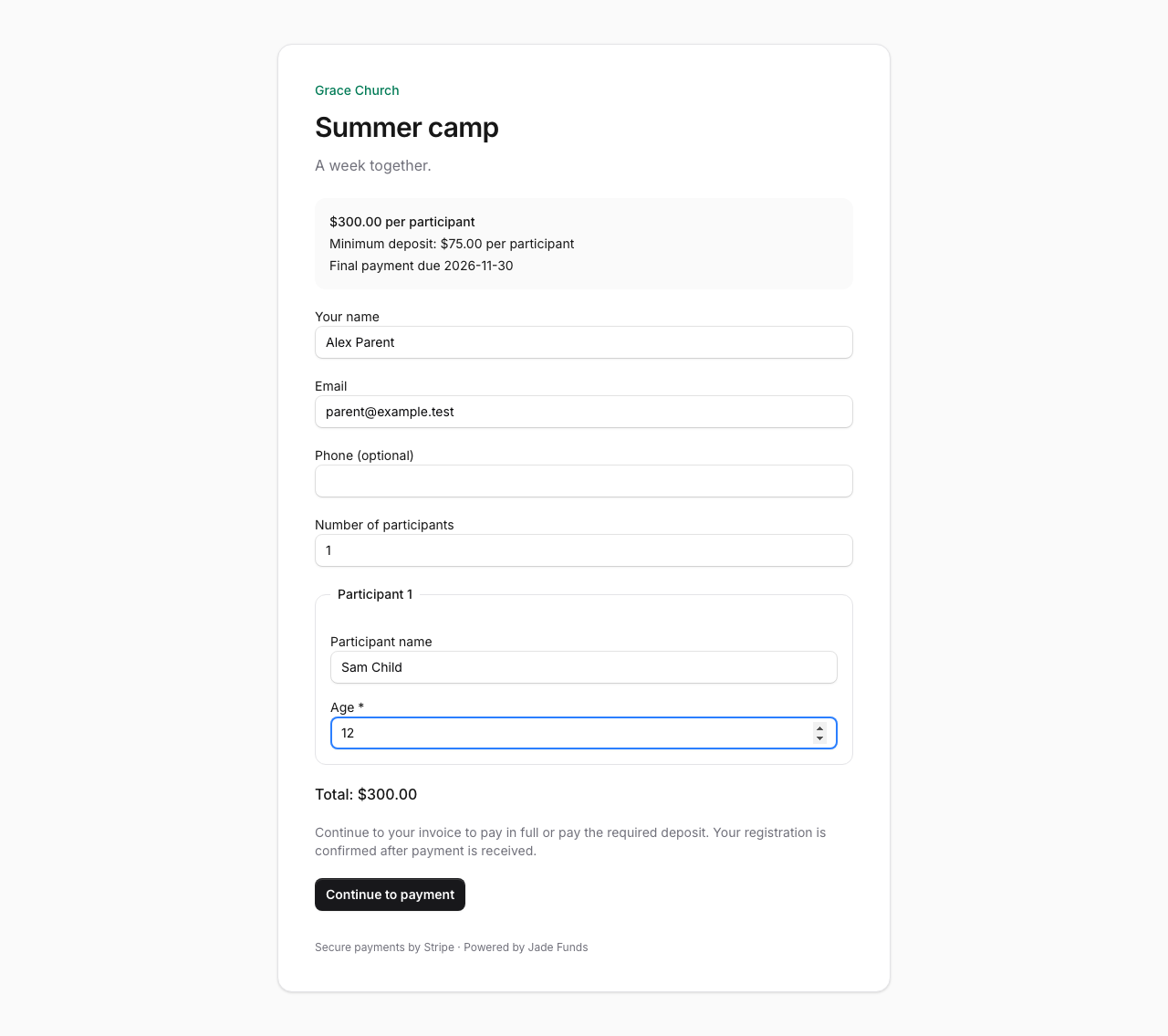
Families enter their contact and participant information, answer your questions, and select Continue to payment. A submitted registration appears in Payments; confirmation follows receipt of the required deposit, or the full amount when no deposit is offered.
Create and email an individual invoice
- Open Giving → Payments and expand Create invoice.
- Enter the description, payer name, payer email, and optional phone number. Set the price per participant and number of participants.
- To allow a deposit, enter the Minimum initial payment ($) for the invoice. Leave it blank to require full payment. Add an optional final due date and choose the fund and payment income account.
- Select Create draft invoice. Review the draft; use Save draft after any edits.
- Select Issue and email invoice. Issuing fixes the invoice terms and emails the payer a unique private link.
For example, a $300 camp invoice can require a $75 initial payment. The family can pay $75 or more initially and return to pay the remaining balance.
How families pay now and return later
- Open the private invoice link in the email. No payer account is required.
- Review the billed, paid, and remaining amounts. Enter an amount in Pay now ($) and select Pay securely with Stripe. When a deposit is offered, the first payment must cover at least that deposit; the payer can choose to pay more.
- Complete checkout using an eligible payment method shown by Stripe. A bank payment can remain Processing until confirmed. While it is processing, wait for the outcome before starting another payment.
- Keep the private invoice email. Return through the same link to make an additional payment and view Payment history. Payment receipts are emailed after confirmation.
Private invoice links do not automatically expire, including after full payment. Keep them private. Installments are not charged automatically: payers choose when to submit each payment.
Track balances and send a reminder
In Giving → Payments, review invoice status, due dates, billed, paid, and remaining amounts. Open an invoice for processing amounts, payment history, and any refunds or adjustments. Check outstanding and overdue balances when following up with families.
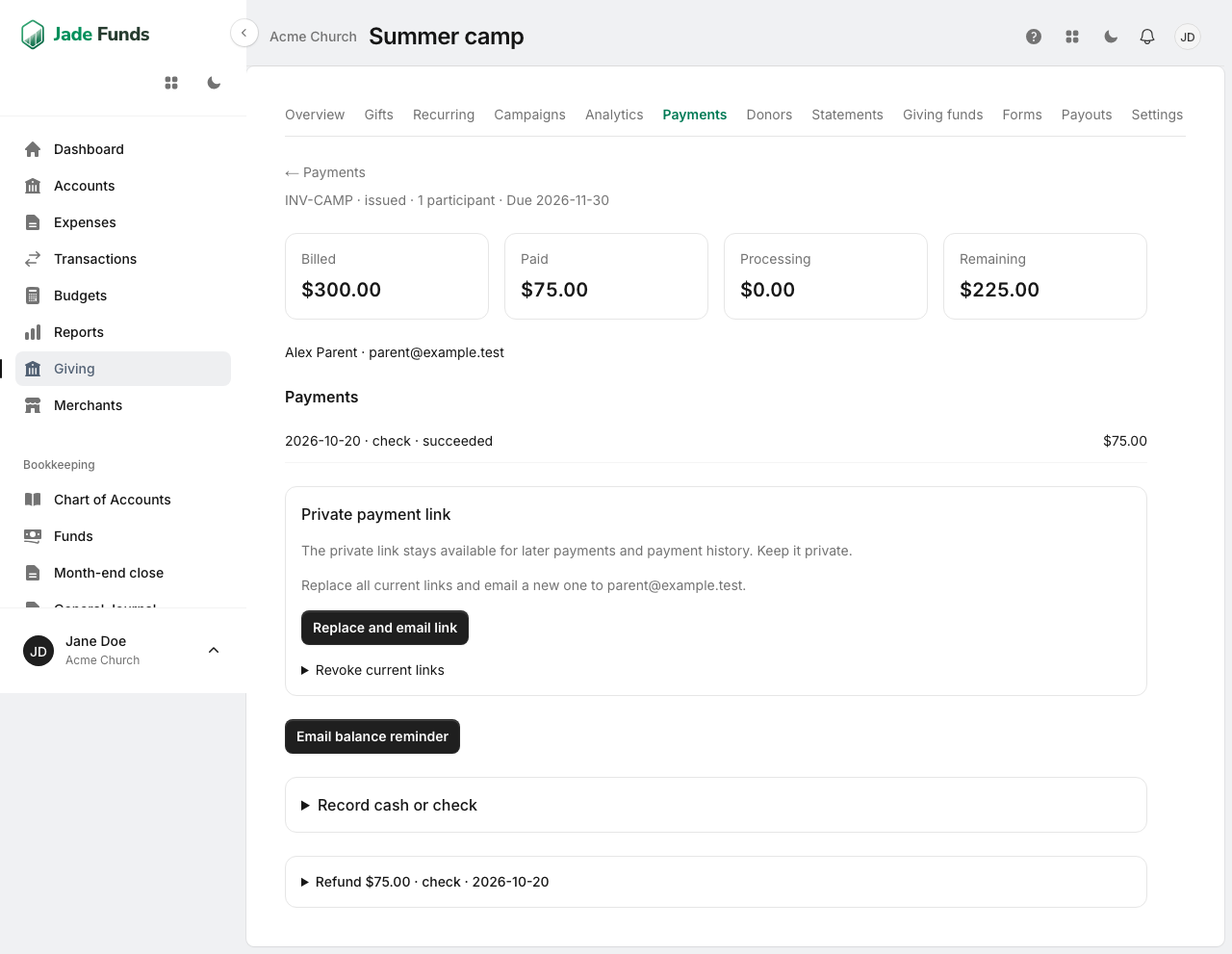
Open an issued invoice and select Email balance reminder when you want to follow up. Reminders are sent by staff; they are not scheduled automatically.
Record a cash or check payment
- Open the invoice and expand Record cash or check.
- Enter the amount, choose Cash or Check, and enter Received on. Add an optional reference and select Record payment. The payment appears alongside online payments and a receipt is emailed to the payer.
- After depositing cash or checks at the bank, open Giving → Payments → Cash & check deposits. Select the receipts in that deposit.
- Choose the existing bank deposit that exactly matches the selected total, then select Match bank deposit. Import or enter the bank deposit first if it is missing. Matching clears the undeposited amounts without adding income again.
Replace or revoke a private invoice link
Open the invoice’s Private payment link section. Select Replace and email link to invalidate current links and email a replacement to the payer. To stop access through current links, expand Revoke current links, check Stop access through all current invoice links, and select Revoke invoice links.
Revoking links preserves the invoice and payment history. It does not cancel a checkout session or payment already started. The payer can request a new link by email; old revoked links remain invalid. If a link is unavailable, the invoice page offers Email a new private link using the invoice’s payer email.
If something looks wrong
If payment collection is awaiting activation, contact support. If an invoice shows a payment as processing, wait for confirmation rather than recording the same payment again. If the invoice says Payment received; accounting needs attention, check the account mappings and closed periods, then use Retry accounting.
Program charges belong in Payments. Use Giving’s gift workflows for donations so donor analytics and contribution statements stay separate.
Quick questions
Do families need an account?
No. Payers access their invoice through a private link emailed to them.
Can someone pay a deposit and finish paying later?
Yes. When a deposit is offered, payers can pay the deposit or more, then return to make additional payments.
Does the payment link expire?
Private invoice links do not automatically expire. Staff can revoke or replace them.
Are installments charged automatically?
No. Payers choose when to submit each payment.
Was this article helpful?
Still need a hand?
Tell us what you were trying to do and what happened. Leave passwords and bank login details out of your message.
Contact Jade Funds support