
Funds & bookkeeping
Read fund balances
On this page
A fund balance reflects the reviewed postings assigned to that fund. Use the fund view to understand which activity belongs to it and why.
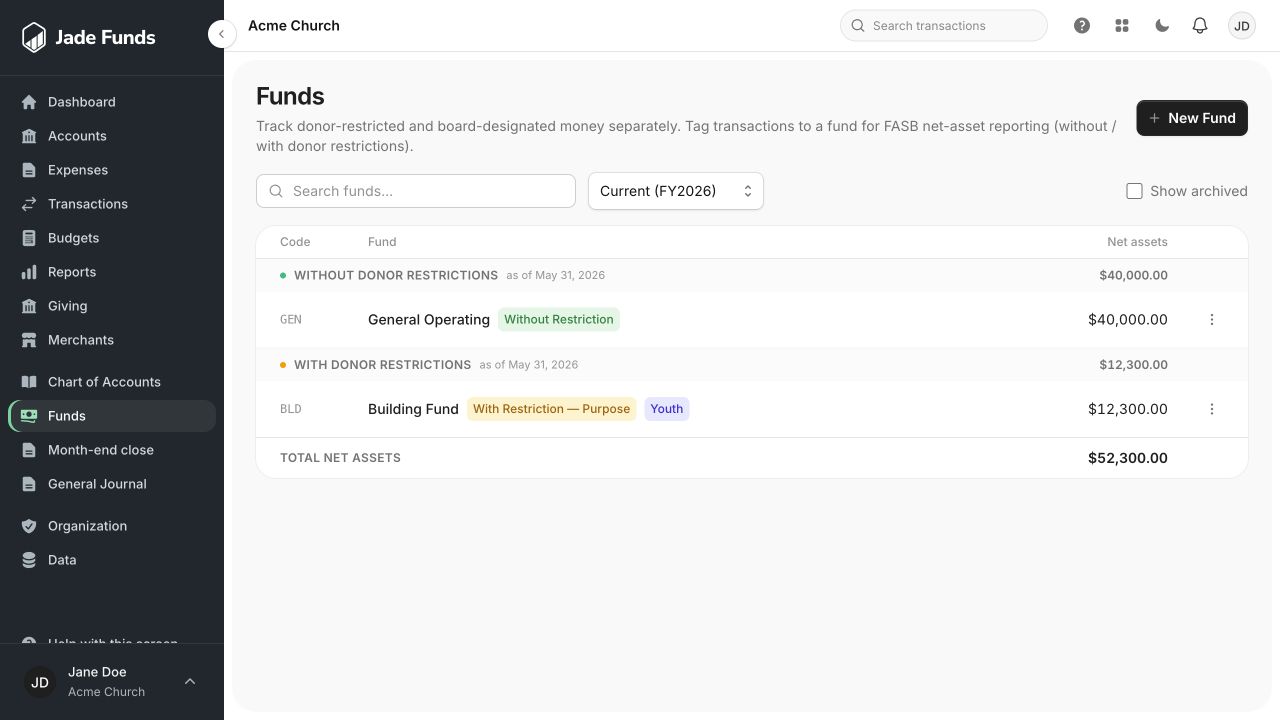
1. New Fund opens fund setup.
2. Choose the fiscal year for the displayed activity.
3. Open a fund to inspect the activity behind its balance.
Open the fund
- Go to Bookkeeping → Funds and select the fund.
- Check its name, restriction type, and restriction note.
- Check the period or date used for the displayed balance.
- Review the fund’s transaction activity and open individual entries when you need their categories or explanations.
What changes the balance
Reviewed income, expenses, opening entries, and relevant journal activity affect the fund’s books. An imported purchase that has not completed review may still need work before it is reflected in financial reporting.
A fund is not a bank account
Several funds can share a checking account, and one fund can have resources represented across accounts. A $10,000 bank balance does not establish that $10,000 belongs to your Operating fund.
A balance is not a spending approval
Consider the fund’s restrictions and the church’s obligations before treating its balance as spendable cash. Budget remaining is a planning figure, not the same measure as fund balance.
If a number looks wrong
Check the date, starting balances, assigned funds, review status, and your access. See Understand bank and book balances.
Was this article helpful?
Still need a hand?
Tell us what you were trying to do and what happened. Leave passwords and bank login details out of your message.
Contact Jade Funds support