
Funds & bookkeeping
Create a fund
On this page
A fund keeps resources for a purpose or restriction distinguishable in the books. It does not require a separate bank account.
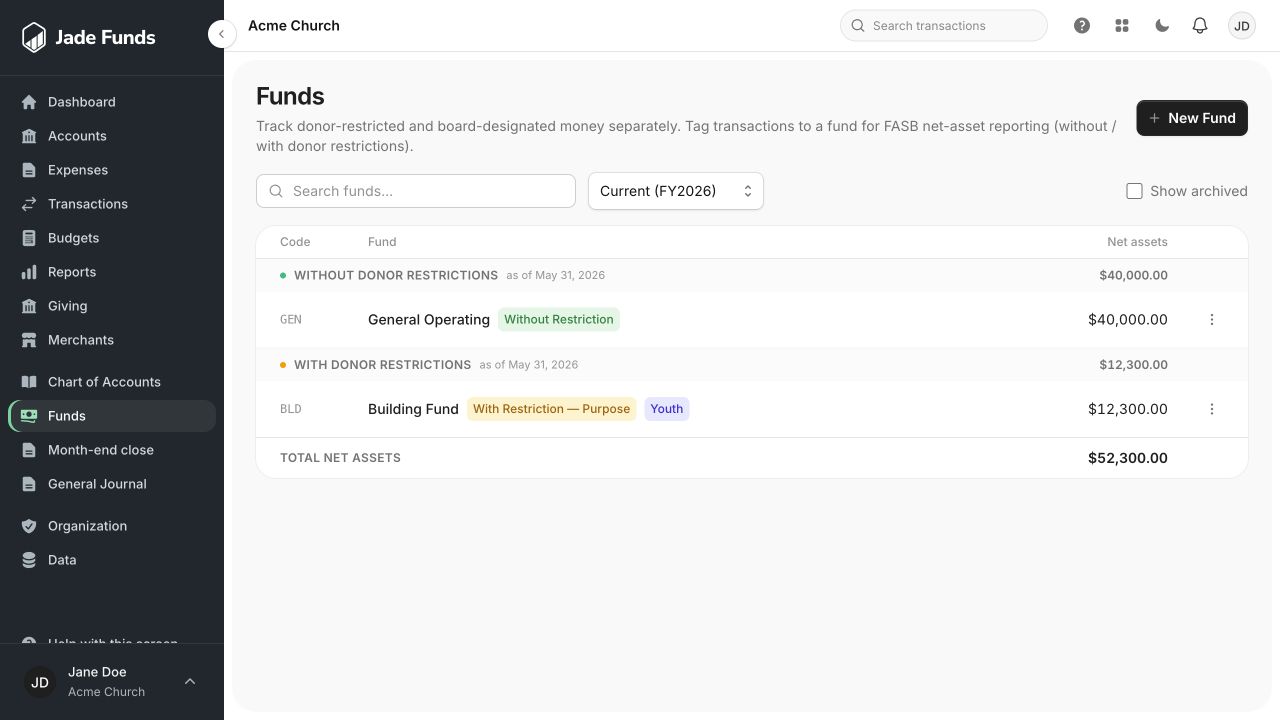
1. New Fund opens fund setup.
2. Choose the fiscal year for the displayed activity.
3. Open a fund to inspect the activity behind its balance.
Before you begin
You need permission to create funds. Agree on the name and purpose, and check the actual terms of any donor restriction with the person responsible for your church’s accounting.
Create the fund
- Open Bookkeeping → Funds.
- Choose New Fund.
- Enter a recognizable name and optional code or description.
- Choose the appropriate Restriction type: none, purpose, time, or permanent.
- Add a Restriction note when it will help the team understand the terms.
- Choose Create Fund and check it in the fund list.
Use it in transactions
Select the fund on the relevant transaction lines. Check the category and fund together: the category describes the activity, and the fund identifies which resources it affects.
Donor restrictions and internal decisions
Do not label money donor-restricted solely because a committee gave it an internal designation. Choose the treatment based on the actual circumstances, and ask your accounting adviser when unsure.
Next step
See Read fund balances and Split a transaction.
Was this article helpful?
Still need a hand?
Tell us what you were trying to do and what happened. Leave passwords and bank login details out of your message.
Contact Jade Funds support