
Transactions & receipts
Categorize and review a transaction
On this page
Review completes the accounting entry after you have checked what happened and where it belongs. Bringing activity in from a bank or file is only the first step.
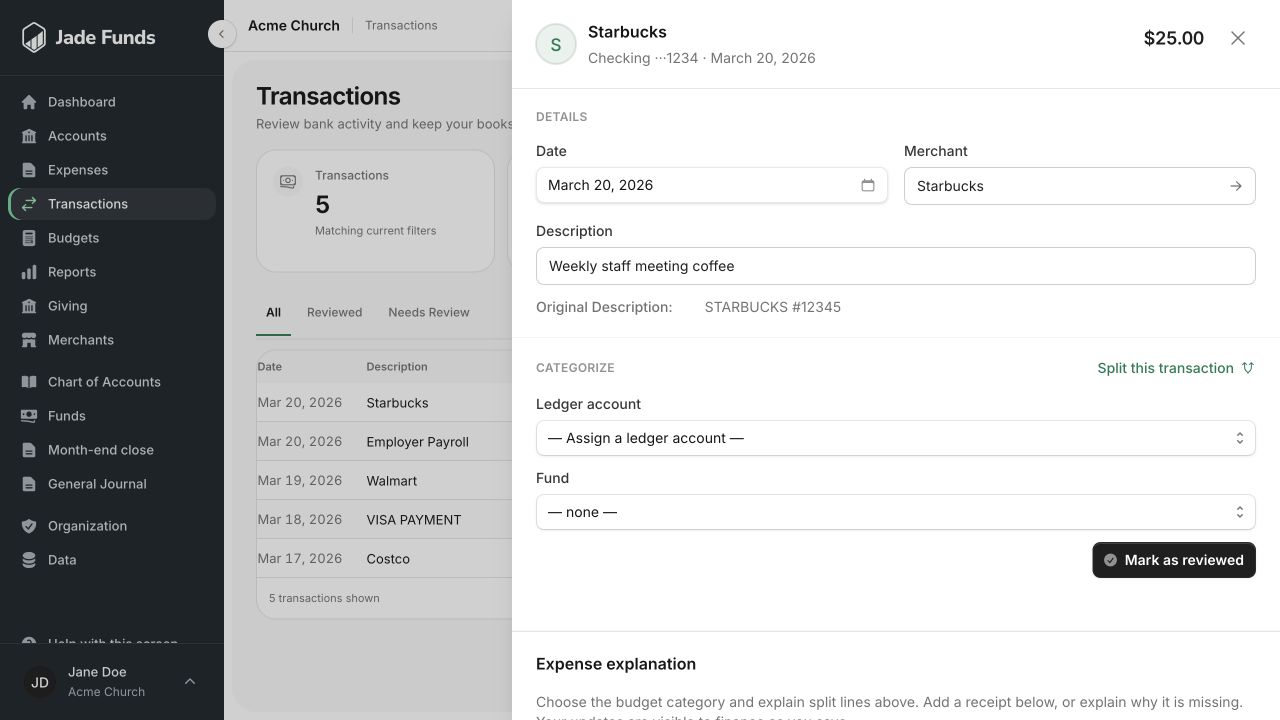
1. Choose the ledger category for the transaction.
2. Choose the fund that the activity belongs to.
3. Split this transaction when one purchase belongs to several categories or funds.
Before you begin
You need the permissions for the changes and review you intend to make. Check the date, amount, financial account, and receipt. If the transaction is already reviewed or falls in a closed month, its financial details are protected.
Work through the entry
- Open the transaction from Transactions or an account’s history.
- Add a useful description if the bank’s wording does not explain the purchase.
- Choose the category or ledger account that describes the income or expense.
- Select the correct fund. Check any suggested fund rather than accepting it automatically.
- If the purchase covers multiple purposes, split it into lines and allocate the full amount.
- Check that the unallocated amount is zero and every required line has a fund.
- Complete the review action when the entry is correct.
Why review can be blocked
Common causes include an unallocated amount, a missing fund, an entry that does not balance, limited permissions, or a closing/closed period. Resolve the specific message shown by the app.
What review changes
Reviewed postings contribute to the books and reports, and their financial details become protected. To correct them later, use the authorized reopen process. See Correct a reviewed transaction.
Was this article helpful?
Still need a hand?
Tell us what you were trying to do and what happened. Leave passwords and bank login details out of your message.
Contact Jade Funds support